Open ResoluteCall and enter your Extension and Password. A Display Name is optional. There’s no server address to configure — the app connects to ResoluteCall automatically. Click Sign In to continue.
This is your home screen after signing in. Type or tap a number on the keypad, then click Call. The left-hand sidebar gives you one-click access to Dial Pad, Call Logs, Contacts, Messages, WhatsApp, and Settings. A green dot next to the logo means you’re registered and ready to receive calls; red means you’re offline.
When someone calls your extension, ResoluteCall shows the caller’s number with two buttons: Answer (green) and Decline (red). A compact call bar also appears at the top of every screen, so you can answer or decline without leaving whatever you’re doing.
While a call is connecting or connected, you’ll see the number, call status, and a live duration timer. Click the Mute icon to mute your microphone, and the red Hang Up button to end the call.
Every call is logged here automatically. Use the All / Incoming / Outgoing / Missed tabs to filter, and click any entry to Call back, send an SMS, or Delete the log.
Click Add to save a new contact’s name and phone number, or use the search bar to find an existing one. Select a contact to Call, SMS, Edit, or Delete them.
Send and receive SMS conversations on your business phone number, right alongside your calls. Select a conversation to open the thread and reply, or click the + button to start a new one. This tab appears once your administrator enables SMS for your account.
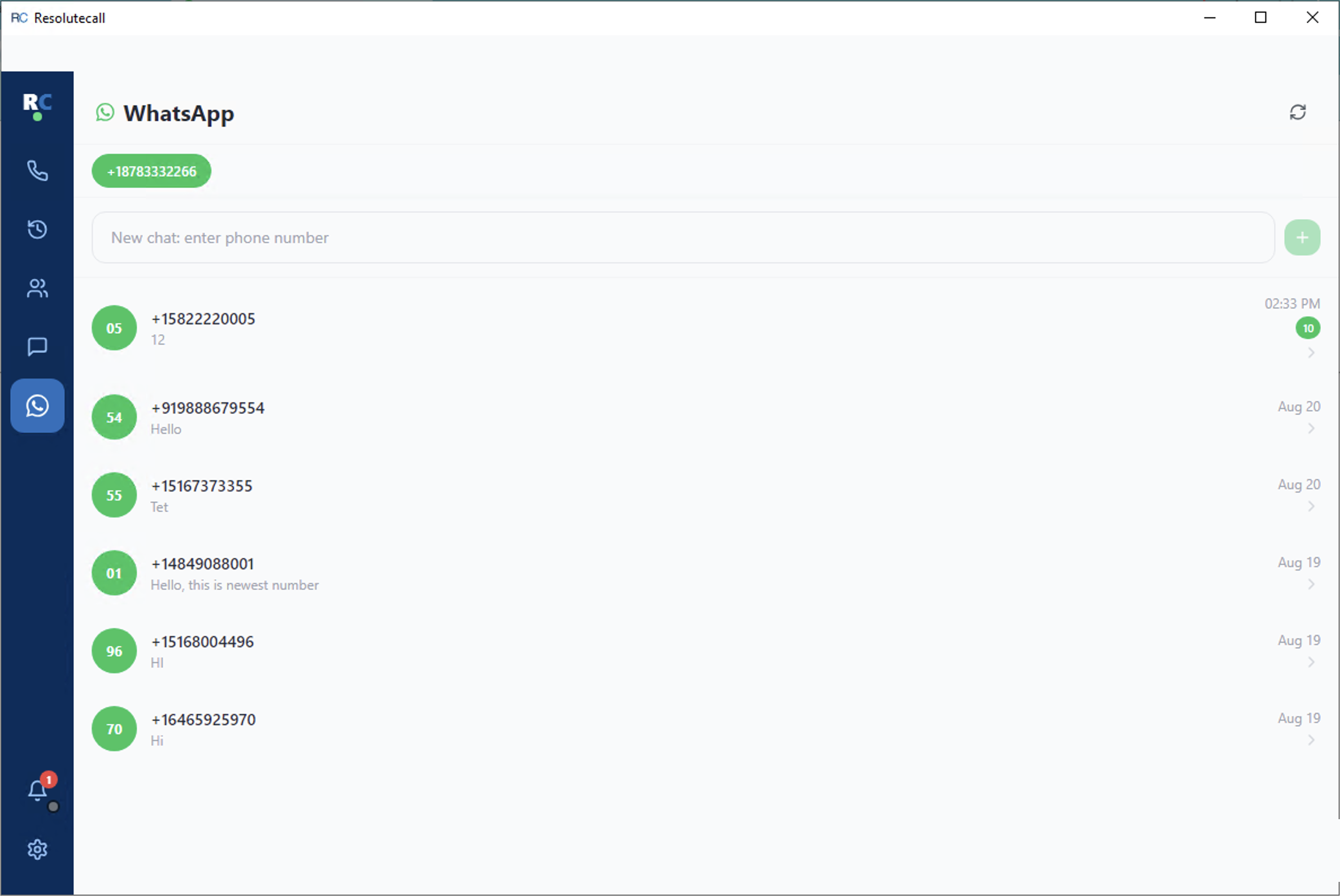
Chat over WhatsApp from the same window using your business number. Pick a conversation to open the thread, or enter a phone number under New chat to start one. Unread messages show a green count badge. This tab appears once WhatsApp Business is activated for your number.
Check your Connection Status, test Notifications, add or switch SIP Accounts, choose a ringtone under Call Settings, see the app version under About, or Sign Out.
Open ResoluteCall and enter your Extension and Password. A Display Name is optional. There’s no server address to configure — the app connects to ResoluteCall automatically. Click Sign In to continue.
This is your home screen after signing in. Type or tap a number on the keypad, then click Call. The left-hand sidebar gives you one-click access to Dial Pad, Call Logs, Contacts, Messages, WhatsApp, and Settings. A green dot next to the logo means you’re registered and ready to receive calls; red means you’re offline.
When someone calls your extension, ResoluteCall shows the caller’s number with two buttons: Answer (green) and Decline (red). A compact call bar also appears at the top of every screen, so you can answer or decline without leaving whatever you’re doing.
While a call is connecting or connected, you’ll see the number, call status, and a live duration timer. Click the Mute icon to mute your microphone, and the red Hang Up button to end the call.
Every call is logged here automatically. Use the All / Incoming / Outgoing / Missed tabs to filter, and click any entry to Call back, send an SMS, or Delete the log.
Click Add to save a new contact’s name and phone number, or use the search bar to find an existing one. Select a contact to Call, SMS, Edit, or Delete them.
Send and receive SMS conversations on your business phone number, right alongside your calls. Select a conversation to open the thread and reply, or click the + button to start a new one. This tab appears once your administrator enables SMS for your account.
Chat over WhatsApp from the same window using your business number. Pick a conversation to open the thread, or enter a phone number under New chat to start one. Unread messages show a green count badge. This tab appears once WhatsApp Business is activated for your number.
Check your Connection Status, test Notifications, add or switch SIP Accounts, choose a ringtone under Call Settings, see the app version under About, or Sign Out.
The mobile app has the same features as desktop, arranged as tabs along the bottom of the screen.
Open ResoluteCall and sign in with the same Extension and Password you use on desktop. Allow microphone and notification access so calls and messages can reach you.
The Call tab is your dial pad. Enter a number and tap the call button. Incoming calls ring with Answer and Decline buttons.
The Logs tab lists every incoming, outgoing and missed call. Tap an entry to call back or send an SMS.
Save and search contacts in the Contacts tab, then call or message them with one tap.
The Messages tab holds your SMS conversations on your business number, with delivery status for each message. It appears once SMS is enabled for your account.
The WhatsApp tab shows WhatsApp Business conversations on your ResoluteCall number, including photos and files. It appears once WhatsApp Business is activated for your number.
Check your connection, manage accounts and ringtones, and sign out from the Settings tab.
The mobile app has the same features as desktop, arranged as tabs along the bottom of the screen.
Open ResoluteCall and sign in with the same Extension and Password you use on desktop. Allow microphone and notification access so calls and messages can reach you.
The Call tab is your dial pad. Enter a number and tap the call button. Incoming calls ring with Answer and Decline buttons.
The Logs tab lists every incoming, outgoing and missed call. Tap an entry to call back or send an SMS.
Save and search contacts in the Contacts tab, then call or message them with one tap.
The Messages tab holds your SMS conversations on your business number, with delivery status for each message. It appears once SMS is enabled for your account.
The WhatsApp tab shows WhatsApp Business conversations on your ResoluteCall number, including photos and files. It appears once WhatsApp Business is activated for your number.
Check your connection, manage accounts and ringtones, and sign out from the Settings tab.
Everything an account administrator does in the ResoluteCall admin panel to get a team calling, texting and chatting.
In the admin panel, open Phone Numbers and click Buy Phone Number. Search by state, number or country code, choose a location, and purchase. The number appears in your list, ready to assign.
Open Device Users to create an extension for each agent and assign a phone number. Share the extension and password with the agent so they can sign in to the app. To give colleagues admin-panel access, use Platform Admin Management → Add User and choose a role.
US business SMS requires a registered 10DLC brand and campaign. Register your brand under Tendlc Brands, then add a campaign for that brand; once approved, the Messages tab appears in the app for users on that number. All conversations can be reviewed under SMS in the admin panel.
Open WhatsApp Business, find the phone number purchased through ResoluteCall, and click Request Activation. The status moves from Pending to Activated once setup is complete, and the WhatsApp tab then appears in the app.
Use Ivrs to build menus (“Press 1 for sales…”) and Ring Groups to ring several extensions at once, then point each phone number at the IVR, ring group or extension that should answer it. Call queues that hold callers until an agent is free are configured by the ResoluteCall team — contact us to set one up.
Open Call Details Record to filter every call by date, user or number, download call recordings, and export reports to Excel or PDF. Your Dashboard summarises call activity across the team.
Haven't installed ResoluteCall yet?
Book a free demo and we’ll show you calling, SMS and WhatsApp Business on a US number. We normally respond within one business day.
